Android · Built for RevenueCat Shipaton 2026

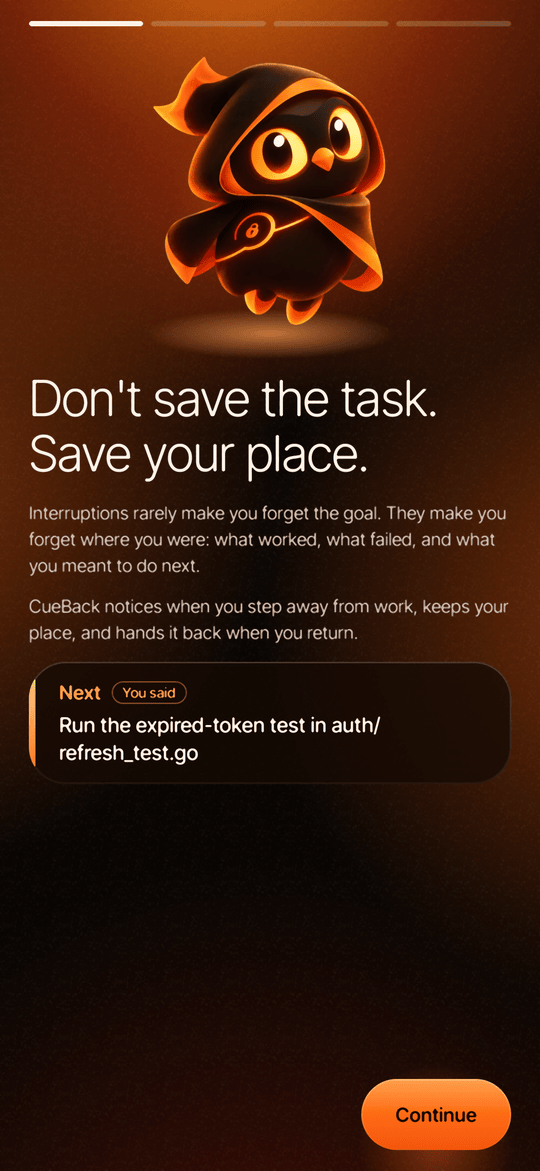
Don’t save the task. Save your place.

CueBack notices when you step away from work on your phone, keeps your place (the next step, the link, what you had), and hands it back the moment you return.

Screen recording: CueBack's welcome-back card says “Welcome back. You were on Physics 101: Problem Set 3” with the next step “Redo 7b, convert km to m first”. Tapping Resume reopens the problem set in Chrome.

The problem, and the fix

You didn’t forget the goal. You lost your place.

The problem

Interruptions rarely make you forget the goal. They make you forget where you were: what worked, what failed, and what you meant to do next.

A notification, a call, a friend. Coming back, you scroll, reread and rebuild the thread in your head before any real work happens.

The fix

CueBack keeps your place, not your to-do list.
  • Noticeswhen you step away: the screen locks, or you drift into other apps.
  • Keepsthe app, what you shared to it, and the one next step that matters.
  • Gives back“You’re back in Chrome”, a welcome-back card, and a one-tap Resume.

1 tap

to resume. Resume reopens the exact page, file or video you shared.

21 s

measured re-entry in the demo recording, from the welcome-back card to real work.

0

screenshots, keystrokes or screen content recorded. It sees which app is open, not what’s in it.

How it works

One interruption, start to finish.

Real recordings from a Moto g34. A student is working through a physics problem set in Chrome, gets pulled away, and comes back.

1

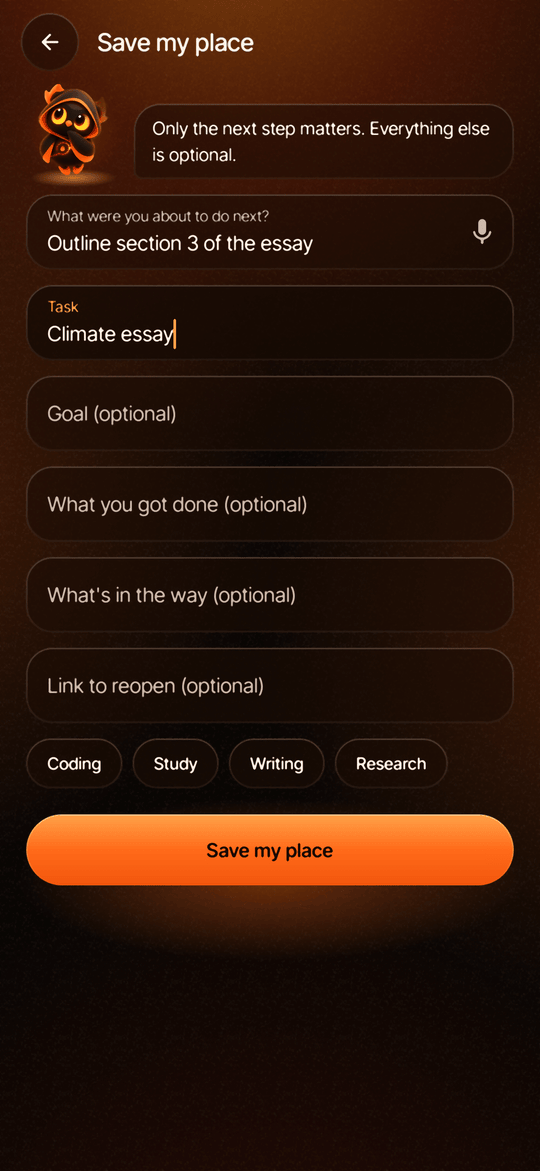
Save your place

Share the page to CueBack and type the one thing you’d otherwise lose: “Redo 7b, convert km to m first.” Then lock the phone and go.

With automatic detection on, CueBack also notices the pause by itself and asks for the next step only when it isn’t sure.

Screen recording: from Chrome's menu the page is shared to CueBack; the Save to CueBack sheet appears and the next step “Redo 7b, convert km to m first” is typed and saved.
2

You’re back in Chrome

Open Chrome again and CueBack recognizes the return. A heads-up notification offers your next step, with Resume right there.

Quick glances away don’t count: coming back within two minutes reattaches silently.

Screen recording: over the problem set in Chrome, a notification slides in: “You're back in Chrome. Next: Redo 7b, convert km to…” with a Resume action.
3

Welcome back

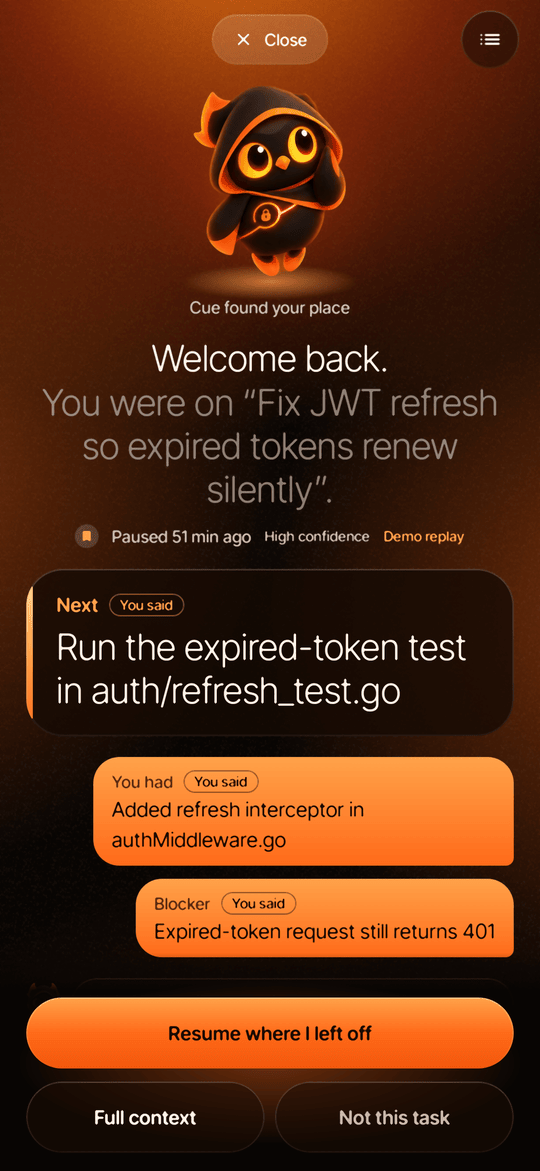
The welcome-back card leads with what you said you’d do next, and how long ago you paused. One tap on Resume where I left off reopens the exact page.

The card is sized to how long you were away: a light cue after a short break, more detail after a long one.

Screen recording: “Finding your place…”, then the welcome-back card for Physics 101: Problem Set 3. Resume reopens the problem set in Chrome.
4

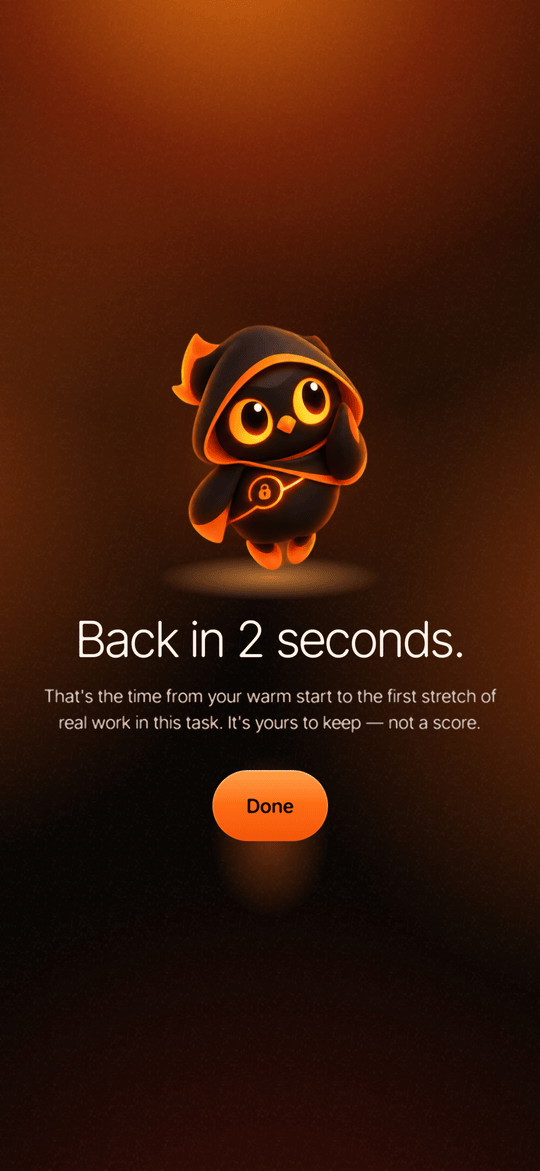
Back in 21 seconds

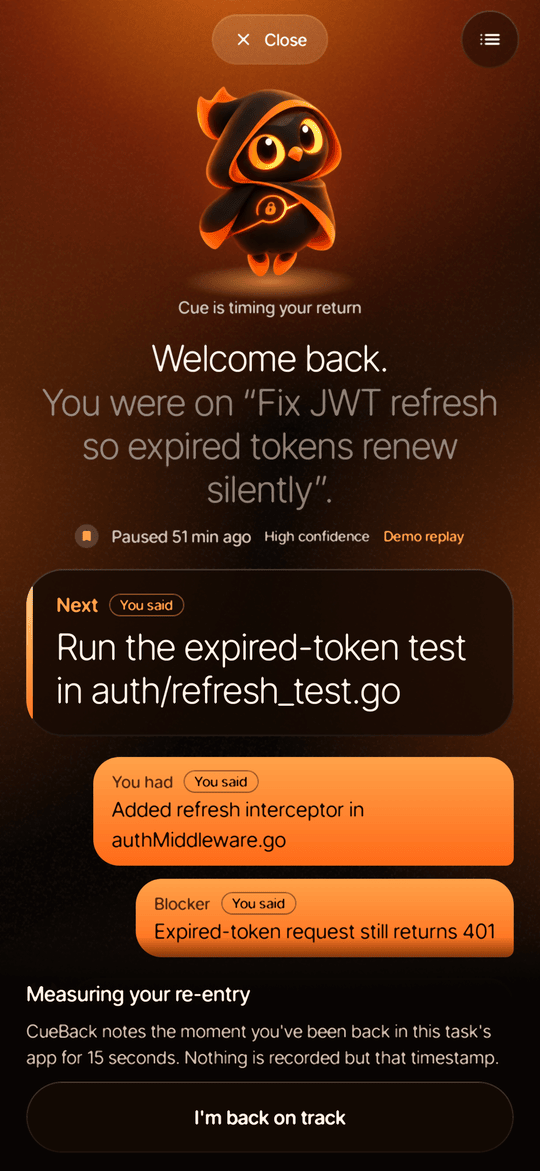
CueBack times the gap between the welcome-back card and your first stretch of real work in that app. It’s yours to keep, not a score, and Home shows your typical re-entry time.

Screen recording: the owl celebrates with “Back in 21 seconds.”; tapping Done returns to Home, which shows the open place and “Typically back in 23s”.
Screen recording: a Wikipedia article and a GitHub source file are each shared to CueBack with their own next step.

Any app that shares

A Wikipedia article, a file on GitHub, a lecture on YouTube: each becomes its own place with its own next step.

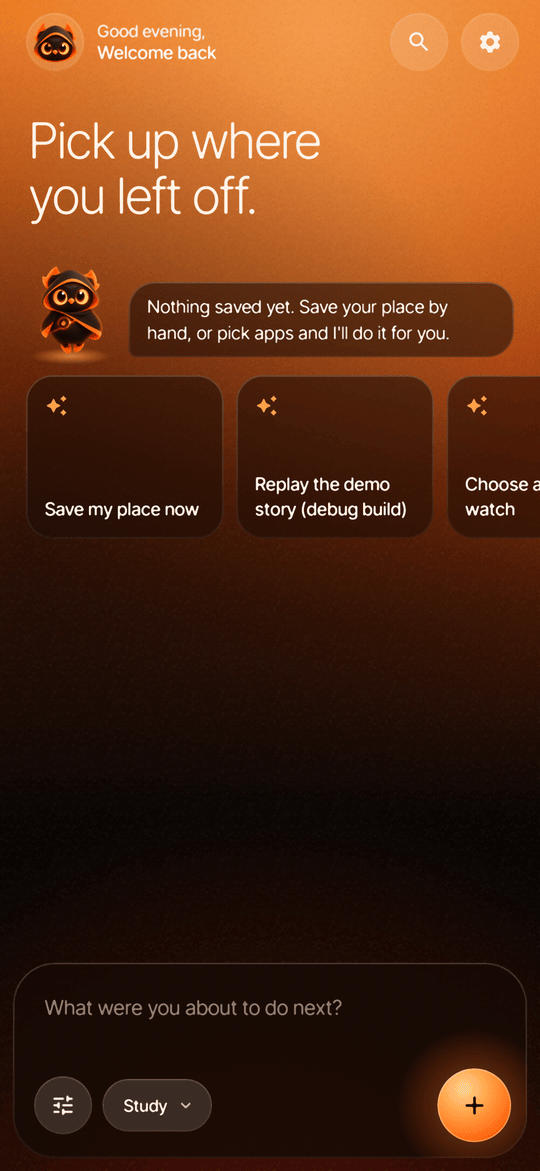
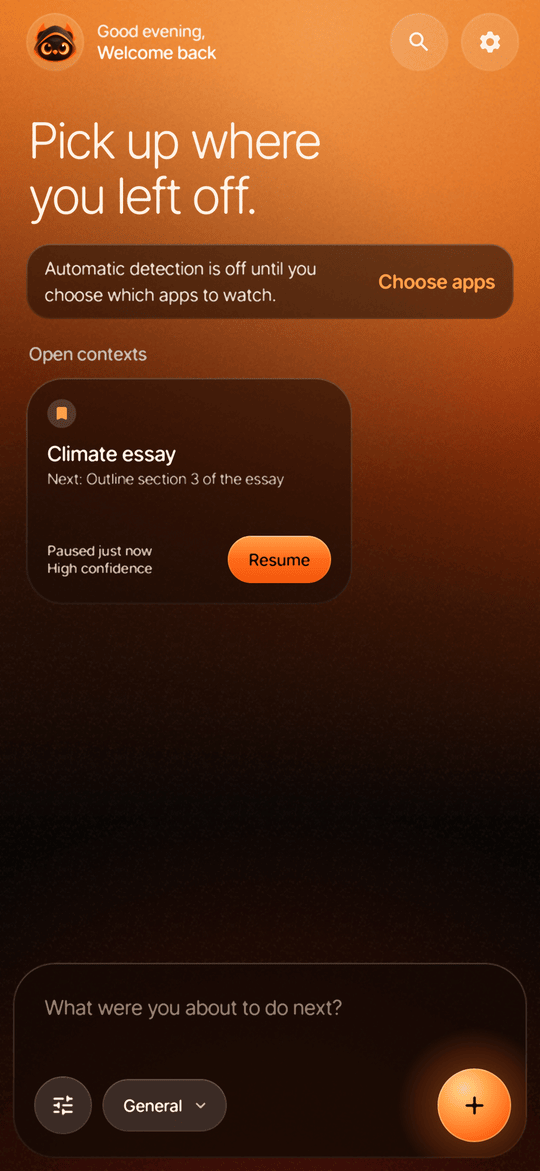
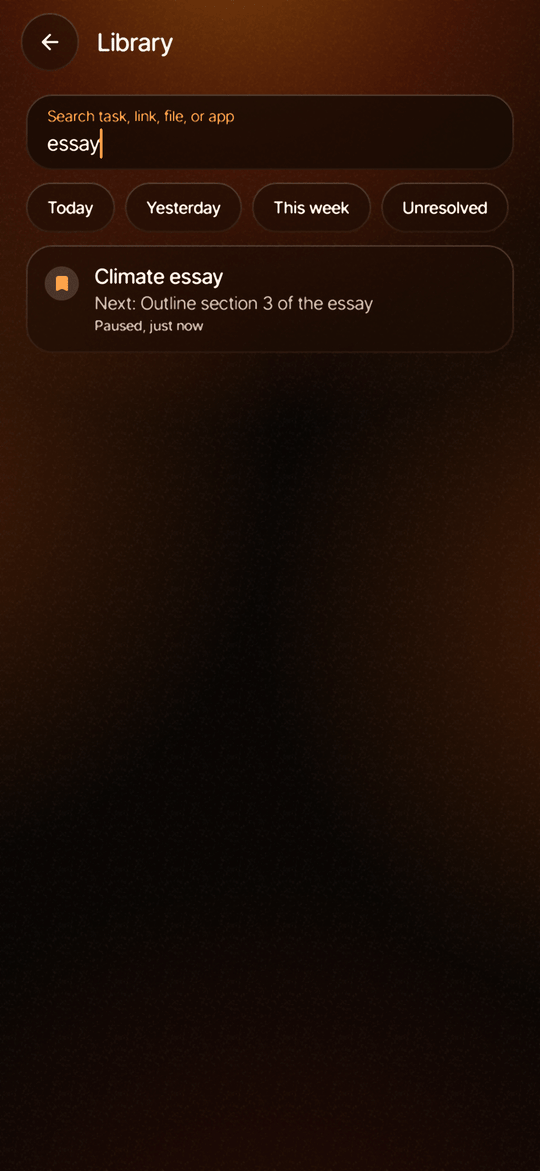
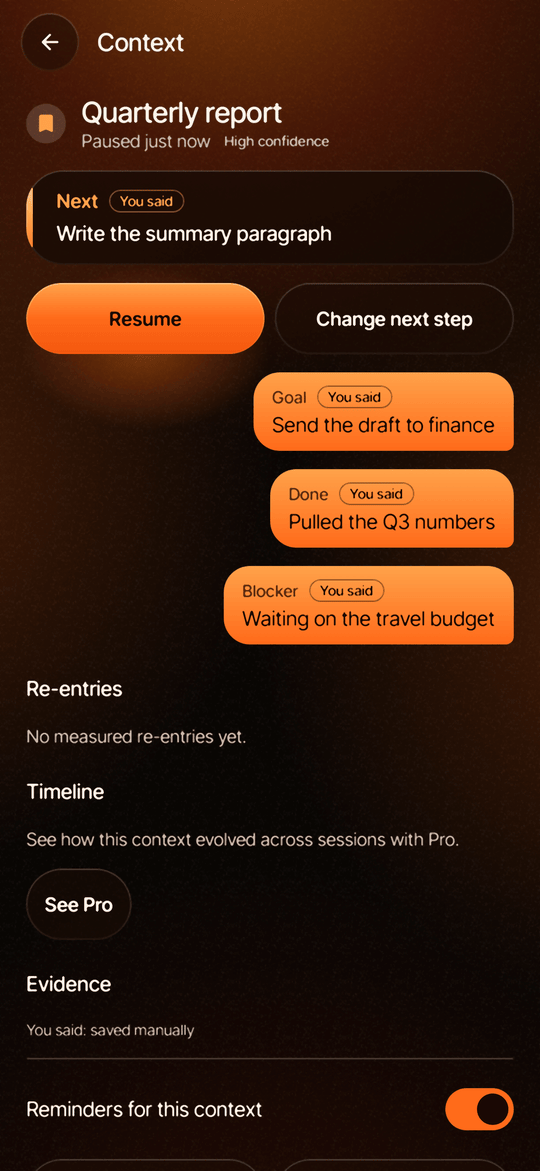
Screen recording: Home's open places, the Library list, a context's detail page and its welcome-back card.

Every place, kept

Home shows what’s open. The Library searches everything you’ve paused, and any place can be resumed from its detail page.

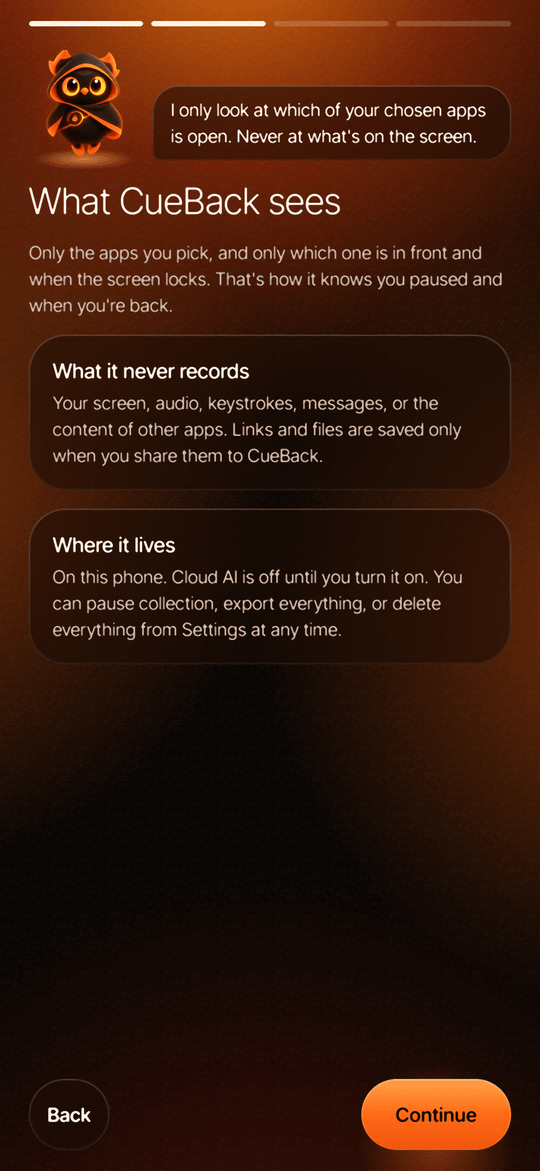
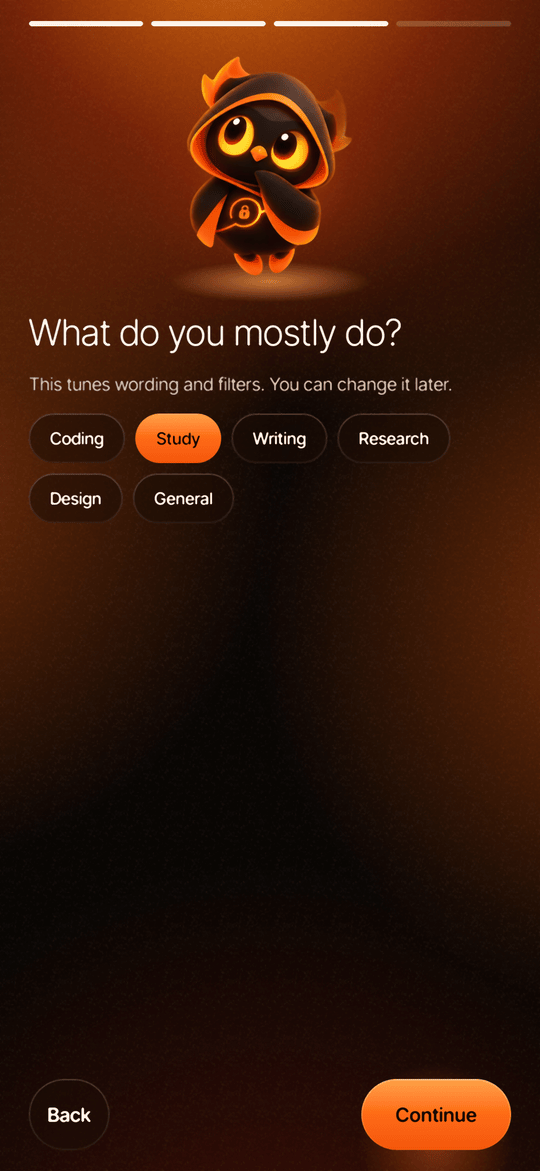
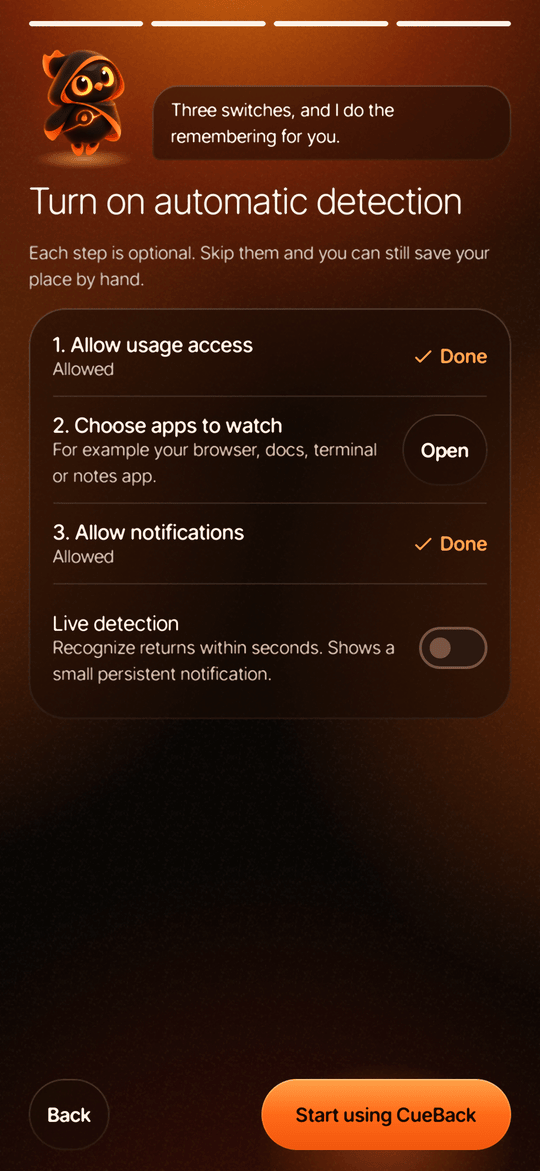
Screen recording: onboarding pages: the promise, what CueBack sees and never records, choosing a use case, and three optional setup switches.

Set up in a minute

Four short pages: the promise, what CueBack can and can’t see, how you work, and three optional switches.

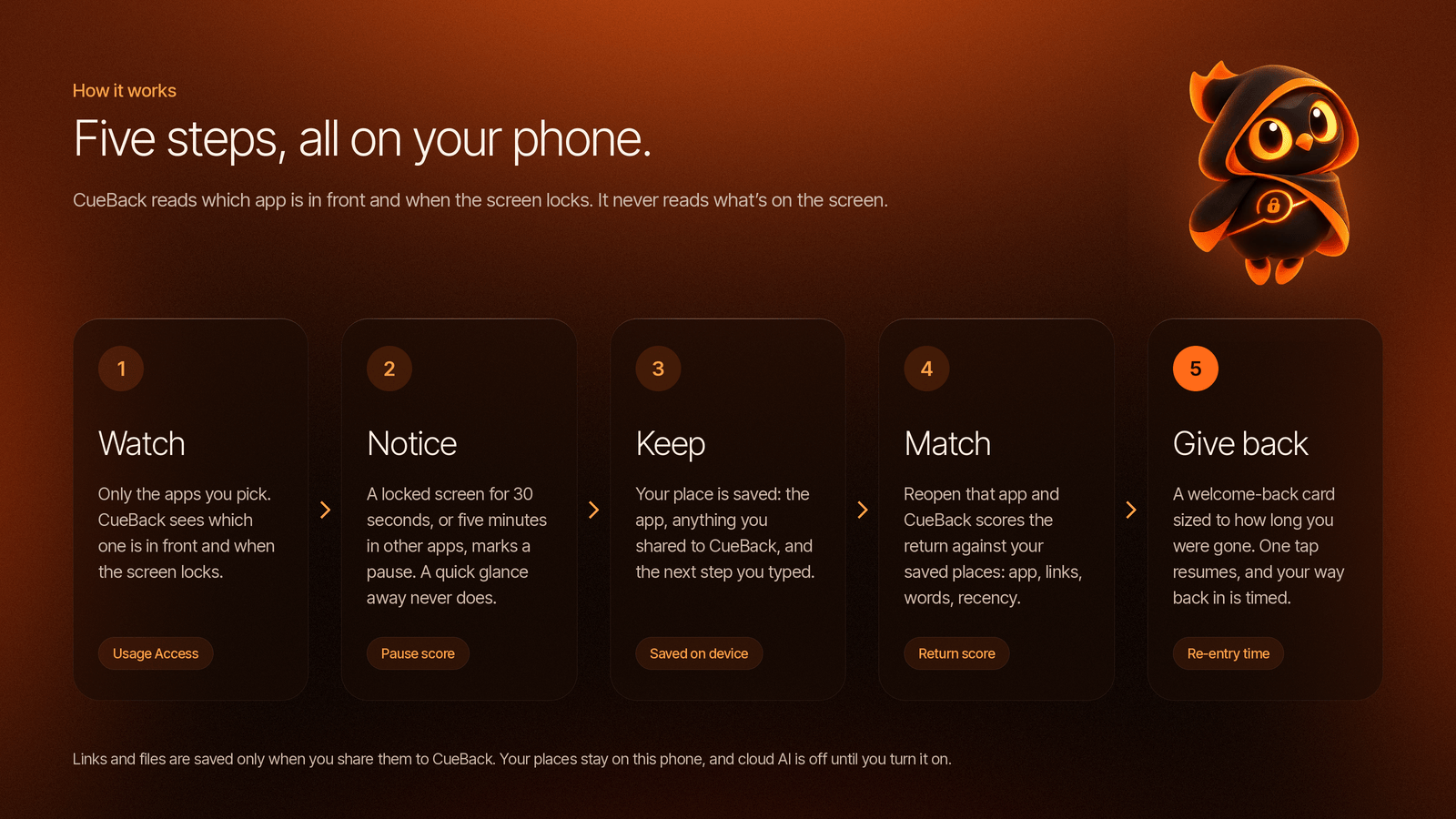
Diagram of the five steps. Watch: only the apps you pick; CueBack sees which one is in front and when the screen locks. Notice: a locked screen for 30 seconds, or five minutes in other apps, marks a pause. Keep: the app, anything you shared and the next step you typed. Match: reopening that app is scored against your saved places. Give back: a welcome-back card sized to how long you were gone, one-tap resume, timed re-entry.

Under the hood: a pause score, a return score and a recovery depth, all computed on the phone. Details in the setup guide.

Screens

Every screen, in the Ember look.

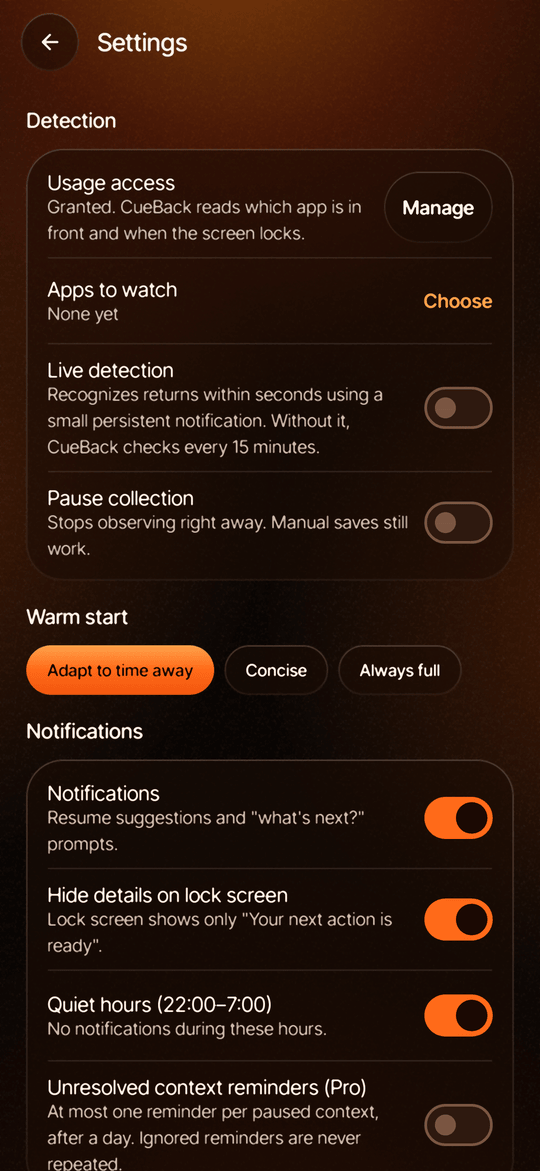
Rendered by the app’s own UI tests. Dark by design: the palette and Cue the owl are made for a dark ground.

CueBack Pro

Upgrade when it’s earned.

Free fully covers one task in one app. Pro is for people juggling several unfinished things across several apps. The paywall appears only after your first successful return, once you’ve felt it work.

Free

Keeps you going on one app

  • 3 open places
  • Watches 1 app
  • Welcome-back card and one-tap resume
  • Type or share your next step
  • Measured re-entry time
  • Export or delete everything

Pro

Entitlement cueback_pro

  • Unlimited places
  • Watches every app you choose
  • Full reconstruction for long breaks
  • Voice capture of the next step
  • Context timeline and reminders

Plans

From the current RevenueCat offering

  • Annual$6.66 / month$79.99per year
  • Monthly$9.99per month
  • Lifetime$99.99once

Prices as configured in the RevenueCat Test Store.

Purchases, restore and entitlements through RevenueCat.

  1. Offering. The paywall shows whatever packages the current offering holds, with store-formatted prices.
  2. Paywall. Shown once, after your first successful return. Also reachable from Settings and any Pro feature.
  3. Purchase. Through the RevenueCat SDK; tested with RevenueCat’s Test Store on a real phone.
  4. Entitlement. Pro unlocks only when cueback_pro is active in CustomerInfo. Nothing in the app can set it locally.
  5. Restore. Restore purchases any time, from the paywall or Settings.
Screen recording: the paywall with Annual $79.99, Monthly $9.99 and Lifetime $99.99; a RevenueCat Test Store purchase of the yearly plan; then “You have CueBack Pro.”
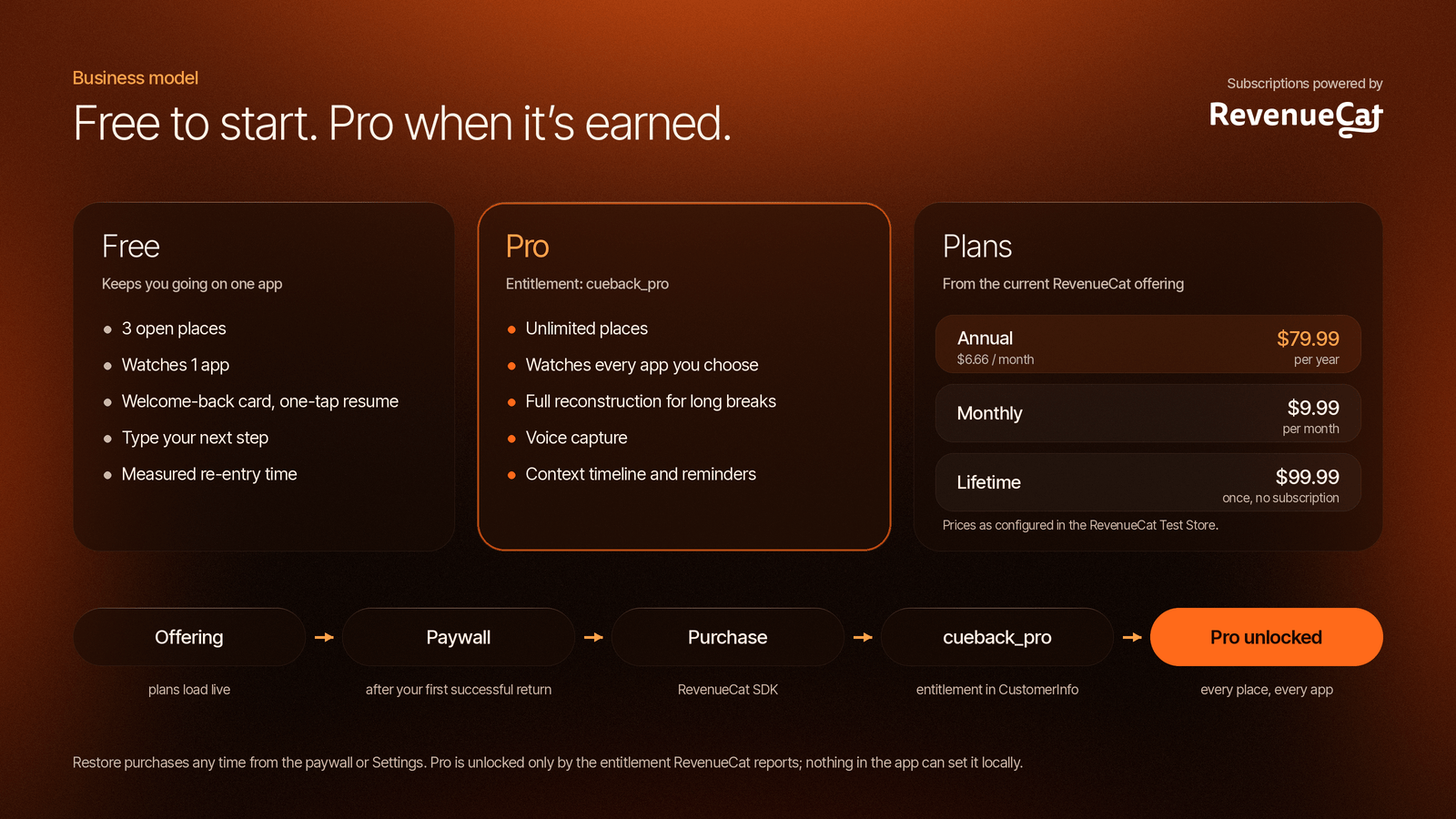
Business model: Free (3 open places, watches 1 app) versus Pro (unlimited places, every app, full reconstruction, voice capture, timeline and reminders); plans Annual $79.99, Monthly $9.99, Lifetime $99.99; flow Offering, Paywall, Purchase, cueback_pro entitlement, Pro unlocked.

More in the business model.

Privacy

It keeps your place, and keeps it private.

Cue wears a padlock for a reason. CueBack knows enough to hand your place back, and no more.

Only the apps you pick

CueBack sees which of your chosen apps is in front and when the screen locks. That’s how it knows you paused and when you’re back.

Never what’s on screen

No screenshots, audio, keystrokes, messages, or the content of other apps.

Links only when you share

Links and files are saved only when you share them to CueBack yourself.

Lives on this phone

Your places are stored on the device. Export everything as JSON, or delete everything, from Settings.

Cloud AI is off

Off until you turn it on with a provider you choose. Secrets are redacted and file contents are never sent.

You’re in control

Pause collection at any time, hide details on the lock screen, and set quiet hours for notifications.

Read the full privacy policy.

Try it

Build it from source.

CueBack isn’t on the Play Store yet. It builds and runs without any keys; billing and push then show a clear “not configured” state.

Build and install

You need JDK 21, the Android SDK, and an Android 9+ phone or emulator.

git clone https://github.com/LSUDOKO/CueBack.git
cd CueBack
cp local.properties.example local.properties
# set sdk.dir in local.properties, then
./gradlew installDebug

Optional keys

  1. RevenueCat: put the public app-specific key in REVENUECAT_API_KEY. A Test Store key (test_…) works in debug builds.
  2. Entitlement: create cueback_pro and attach your monthly, yearly and lifetime products to the current offering.
  3. OneSignal: put the App ID in ONESIGNAL_APP_ID for push. Only privacy-safe tags are sent, never task content.